Stripe is available on some MoodleCloud plans, so you can accept course payments through a modern payment experience, with flexible payment options.
Overview of the steps
- Check your MoodleCloud Plan
- Set Up Your Stripe Account
- Check that the Stripe Payment Gateway is active
- Create a Payment Account to connect Stripe with your MoodleSite
- Enable "Enrolment on Payment"
- Add Stripe to a Specific Course
- How it looks for the Learner (test a payment to show that Stripe and MoodleCloud are connected)
Step 1: Check your MoodleCloud Plan
Before adding Stripe as a payment, you need to check which MoodleCloud plan you are on. The Stripe payments are available on the Small, Medium and Standard plans.
To check which plan you are on:
- Log in to your MoodleCloud portal
- Your plan will be listed on the first landing page.
If you would like to change your plan so that you can use Stripe for payments:
- Choose your site
- Navigate to the Change plan tab
- Choose either a Small, Medium or Standard plan
- Follow the steps to pay for the new plan.
Step 2: Set Up Your Stripe Account
Before configuring Moodle, you must have your Stripe credentials ready.
- Log in to your Stripe Dashboard.
- Locate and copy your Publishable key and Secret key.
Note: When you first set up your Stripe account, you will start in a test mode called “Sandbox”. The keys on this page are test keys so you can check that money can be received. The money in test mode is not real money.
Step 3: Check that the Stripe Payment Gateway is active
In MoodleCloud, the Stripe payment gateway is already enabled for your payment preferences.
- Log in to your MoodleCloud site as an Administrator.
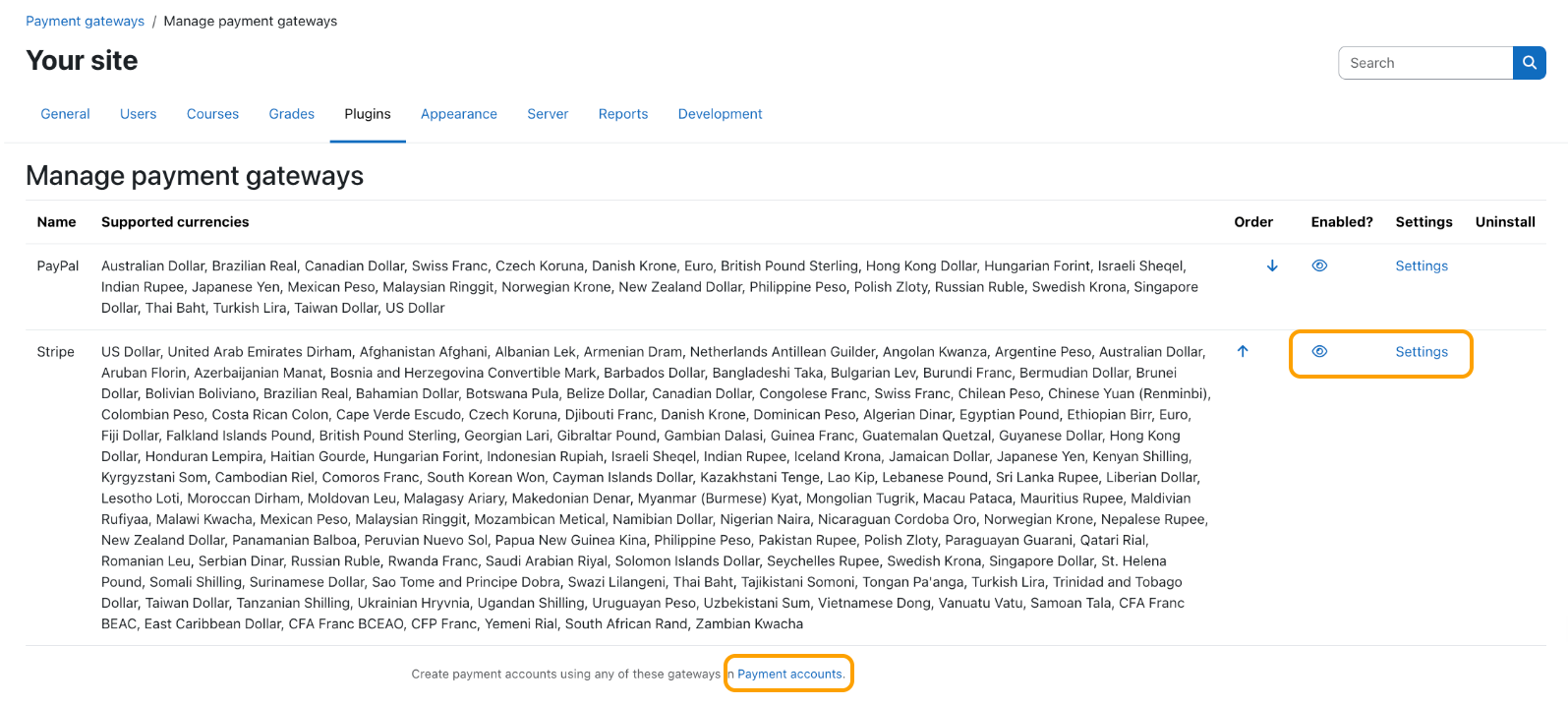
- Go to Site administration > Plugins > Payment gateways > Manage payment gateways.
- Locate Stripe and check that it is Enabled (eye icon).
- Click Settings to set your payment surcharge preference.
- Once set, click the direct link to Payment Accounts (Step 4).
Step 4: Create a Payment Account
This connects your specific Stripe credentials to your Moodle site.
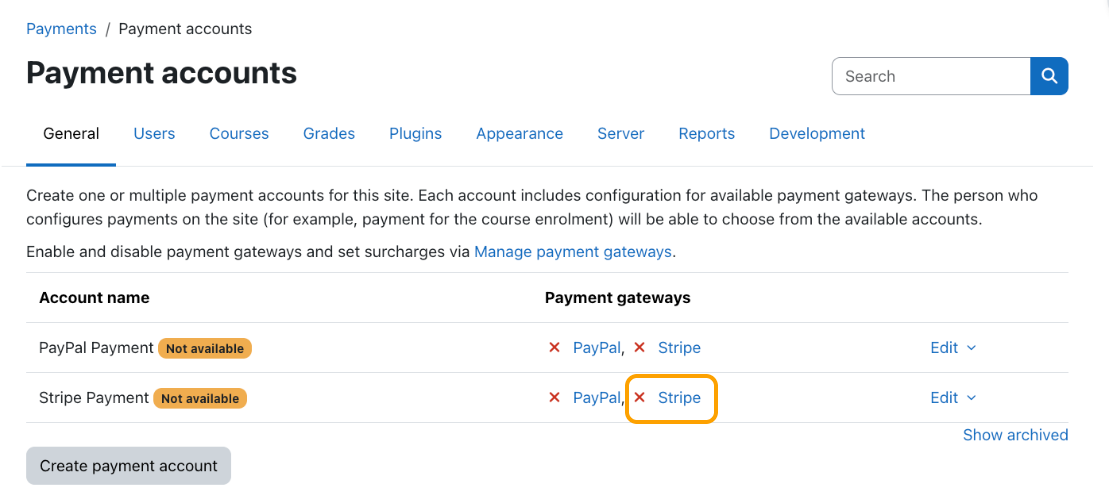
- Go to Site administration > General > Payments > Payment accounts.
- A default Stripe Payment account is ready for you to configure.
- Click the Stripe link next to the account to open the payment account settings.
- Configure your Payment Account settings:
- Tick the Enable box
- Enter the Publishable key and Secret key you copied from Stripe in Step 2.
- Payment Methods: Multiple payment methods can be selected as Stripe offers a dynamic checkout*
- Tax and Billing: Configure these details where applicable (ensure your business details are also set in your Stripe account).
- Payment Type: choose between One Time or Subscription.
- Other options as required.
- Click Save changes.
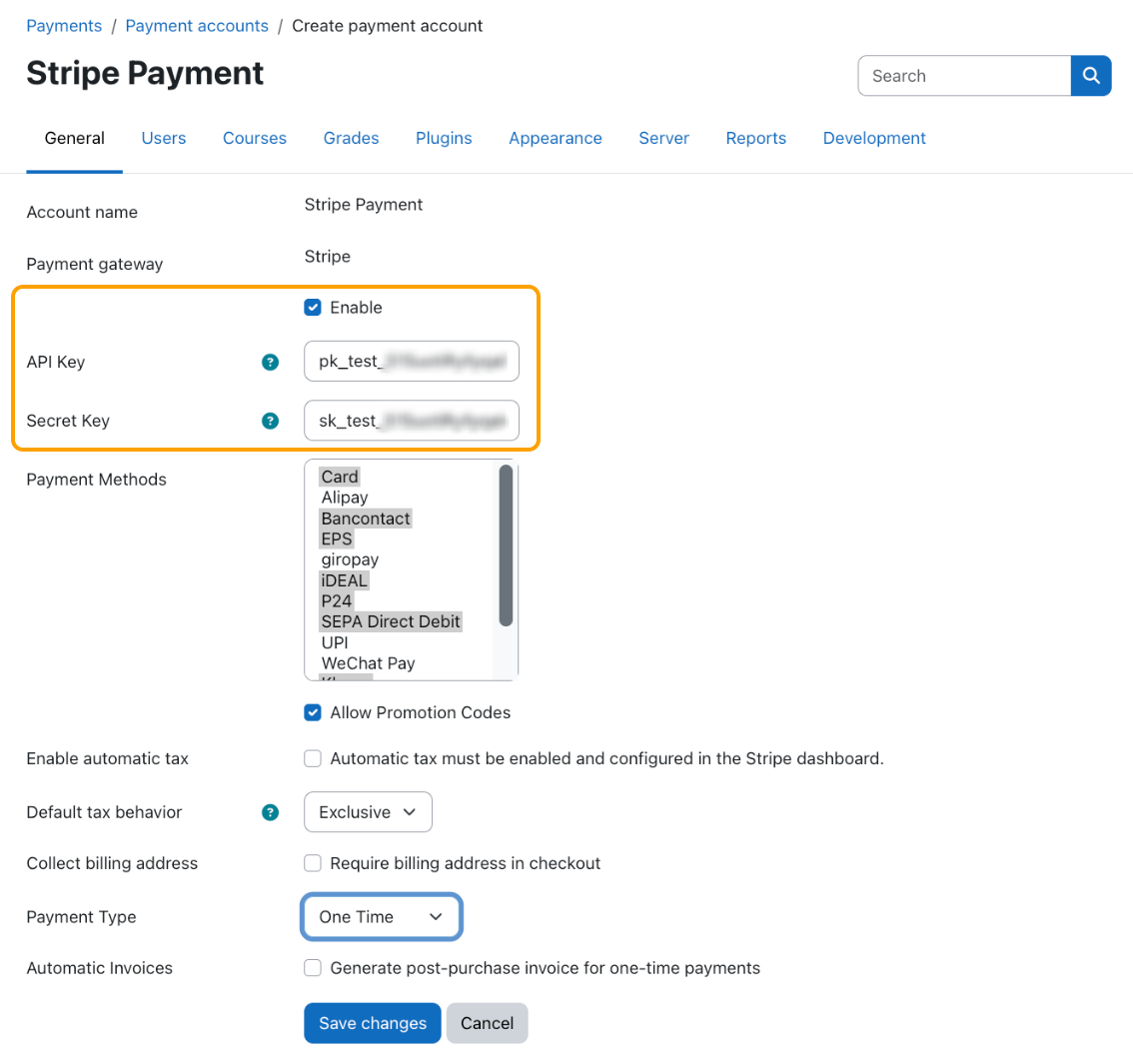
* Stripe's dynamic checkout - multiple payment methods can be selected. The visibility of payment buttons (options) on the payment page depends on your Stripe account's location, the course currency, your learner's location, and whether the payment method supports one-time or subscription payments. For more details about what is supported, visit the Stripe Payment Gateway plugin documentation.
Step 5: Enable "Enrolment on Payment"
Now you must enable the method that allows users to pay to enter a course.
- Go to Site administration > Plugins > Enrolments > Manage enrol plugins.
- Locate Enrolment on payment and click the Enable (eye icon).
Step 6: Add Stripe to a Specific Course
Finally, apply the payment requirement to the course you want to sell.
- Navigate to the specific Course you want to set up.
- Go to Participants (in the course navigation menu).
- From the dropdown menu, select Enrolment methods.
- In the "Add method" dropdown, select Enrolment on payment.
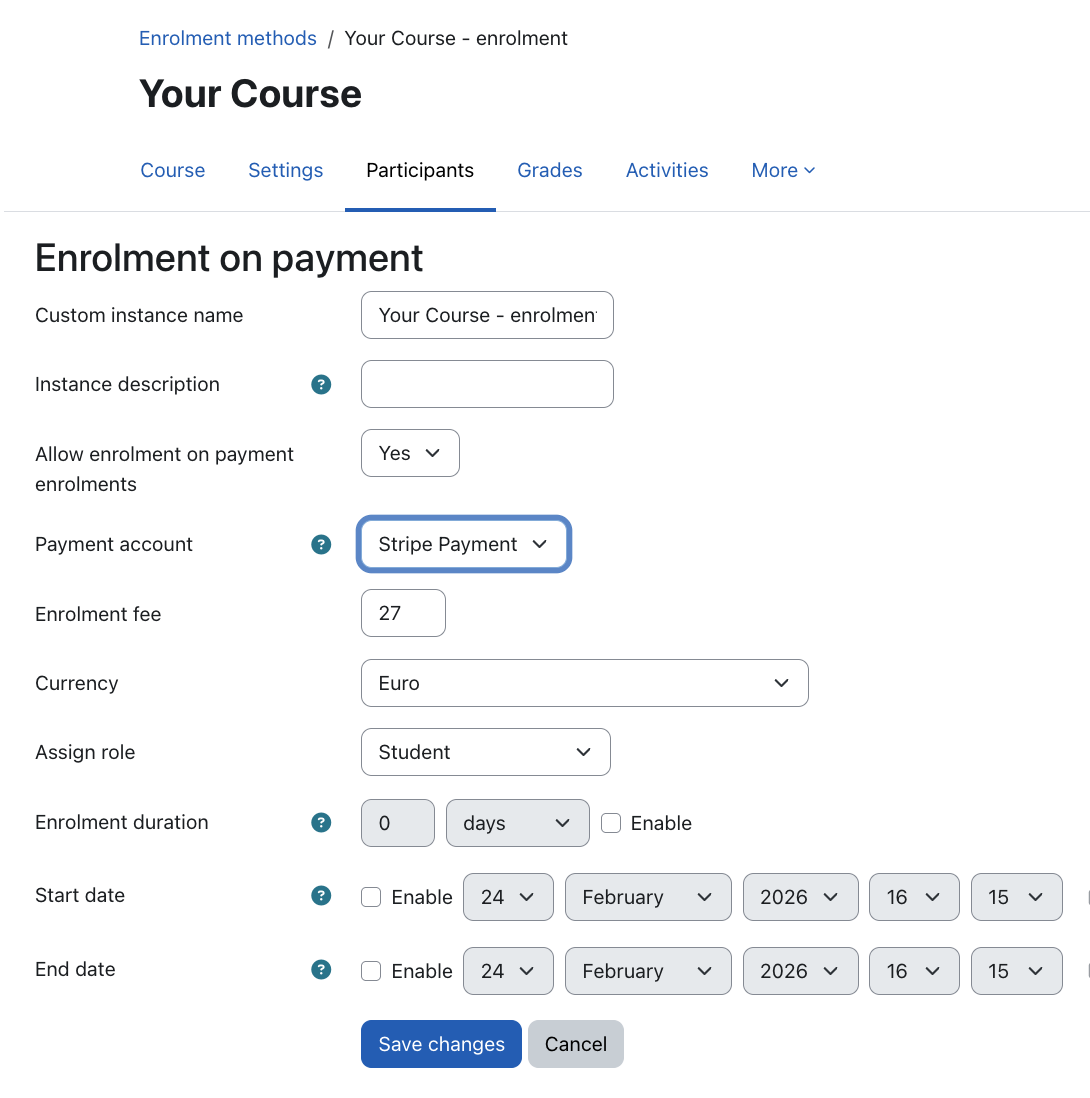
- Configure the settings:
- Custom instance name: The instance name will be displayed to the learner when paying for enrolment.
- Payment account: Select the Stripe account you set up in Step 4.
- Enrolment fee: Set your price.
- Currency: Ensure the selected currency works with the payment methods you selected in Step 4.
- Click Save changes.
Tip: You can add multiple 'Enrolment on payment' instances to a course if you want to offer different pricing tiers, currency or payment accounts.
How it looks for the Learner
- When a non-enrolled user tries to access the course, they will see a page showing the price of the course.
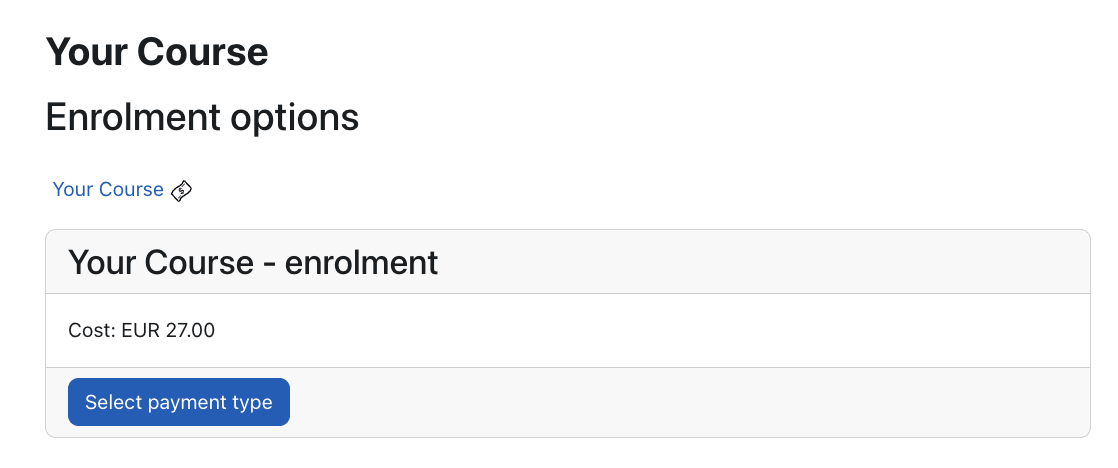
- Once they click Select payment type, they can proceed to the Stripe dynamic checkout.
- Stripe will dynamically display the valid payment buttons based on your Stripe configuration, the course currency and the learner's location.
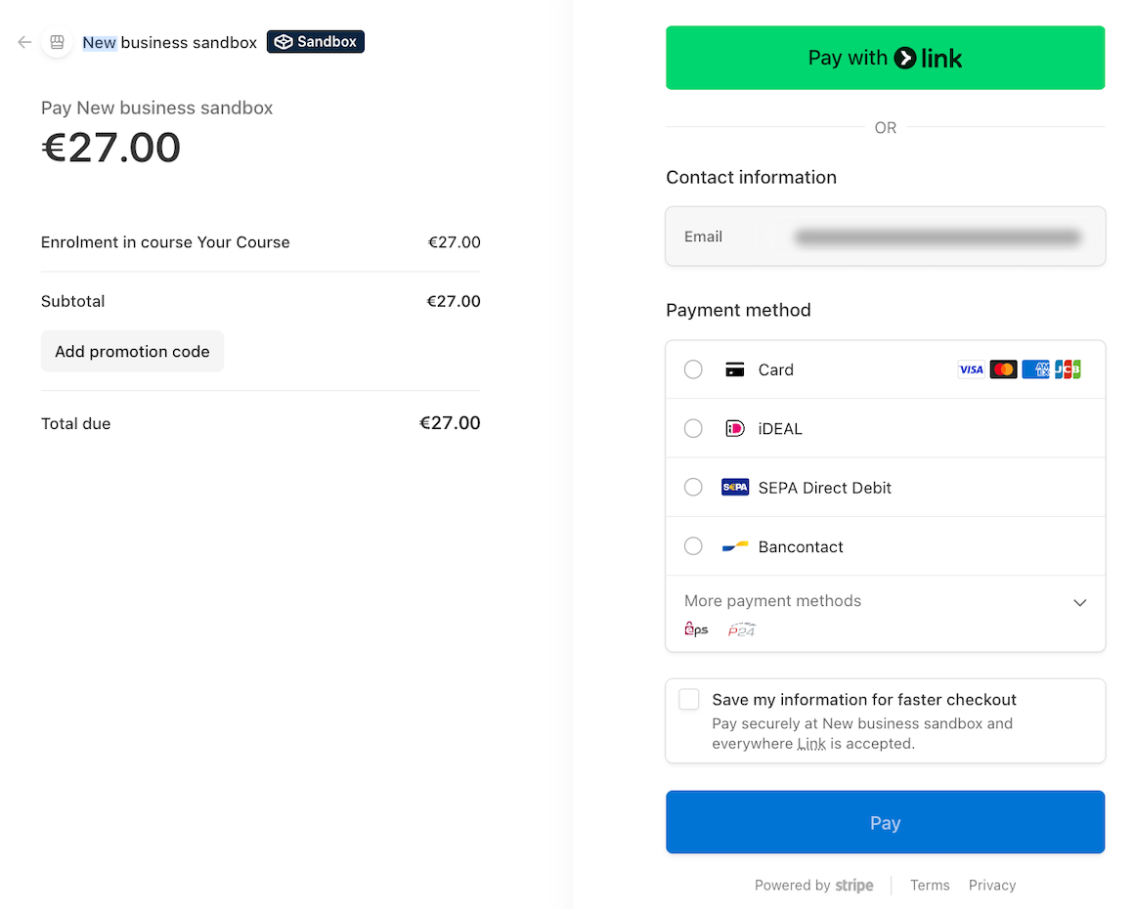
- Once they select the payment method, click Pay and process payment successfully, they are then automatically enrolled in the course.
*If you experience any issues or errors, please Contact the MoodleCloud Team via the Help Widget in your portal.
Was this article helpful?
That’s Great!
Thank you for your feedback
Sorry! We couldn't be helpful
Thank you for your feedback
Feedback sent
We appreciate your effort and will try to fix the article